


Meta Business Suite vs Ads Manager: Setting Up Your Meta Business Ad Manager
Understanding the difference between Meta Business Suite and Meta Ads Manager is the first step toward building a successful advertising operation. While both tools live under the Meta ecosystem, they serve entirely different primary purposes.
Meta Business Suite is built primarily for page managers and organic content strategies. It allows you to schedule organic posts across Facebook and Instagram, reply to direct messages in a unified inbox, track basic page engagement, and quickly boost existing posts. However, relying solely on boosting posts limits your strategic potential. Boosted posts lack deep control over bidding, advanced audience setup, dynamic creative testing, and multi-stage funnel structures.
Meta Ads Manager, on the other hand, is built specifically for performance advertisers. It provides a structured three-tier hierarchy (Campaign, Ad Set, and Ad) designed for running sophisticated, conversion-driven campaigns.
| Feature / Capability | Meta Business Suite | Meta Ads Manager |
|---|---|---|
| Primary Focus | Organic content, page management, and social engagement | Paid performance advertising and conversion optimization |
| Messaging & Inbox | Unified cross-platform inbox (Facebook, IG, Messenger) | None (focused strictly on campaign analytics and ad delivery) |
| Content Scheduling | Native planner for scheduling stories, posts, and reels | Ad scheduling based on dayparting and campaign run dates |
| Targeting Capabilities | Basic demographic and location options for post boosting | Advanced custom audiences, lookalikes, detailed interests, and exclusions |
| Campaign Structure | Single-tier boosted posts | Three-tier hierarchy: Campaign, Ad Set, and Ad Creative |
| A/B Testing & Optimization | Limited basic creative testing | Robust split testing, Advantage+ creative optimization, dynamic assets |
| Reporting & Analytics | Top-level page engagement and reach metrics | Deep, customizable performance reporting, ROAS, CPA, and placement breakdowns |
While Meta Business Suite keeps your community engaged day-to-day, meta business ad manager tools provide the backend power required to scale measurable sales and drive high-intent store visits.
How to Set Up Meta Business Manager and Add Assets
Before launching ads in Meta Ads Manager, you must establish a centralized home for your business assets: Meta Business Manager. Setting up your account properly ensures clear asset ownership and seamless cross-platform management. Each personal Facebook account is permitted to create up to two Meta Business Manager accounts.
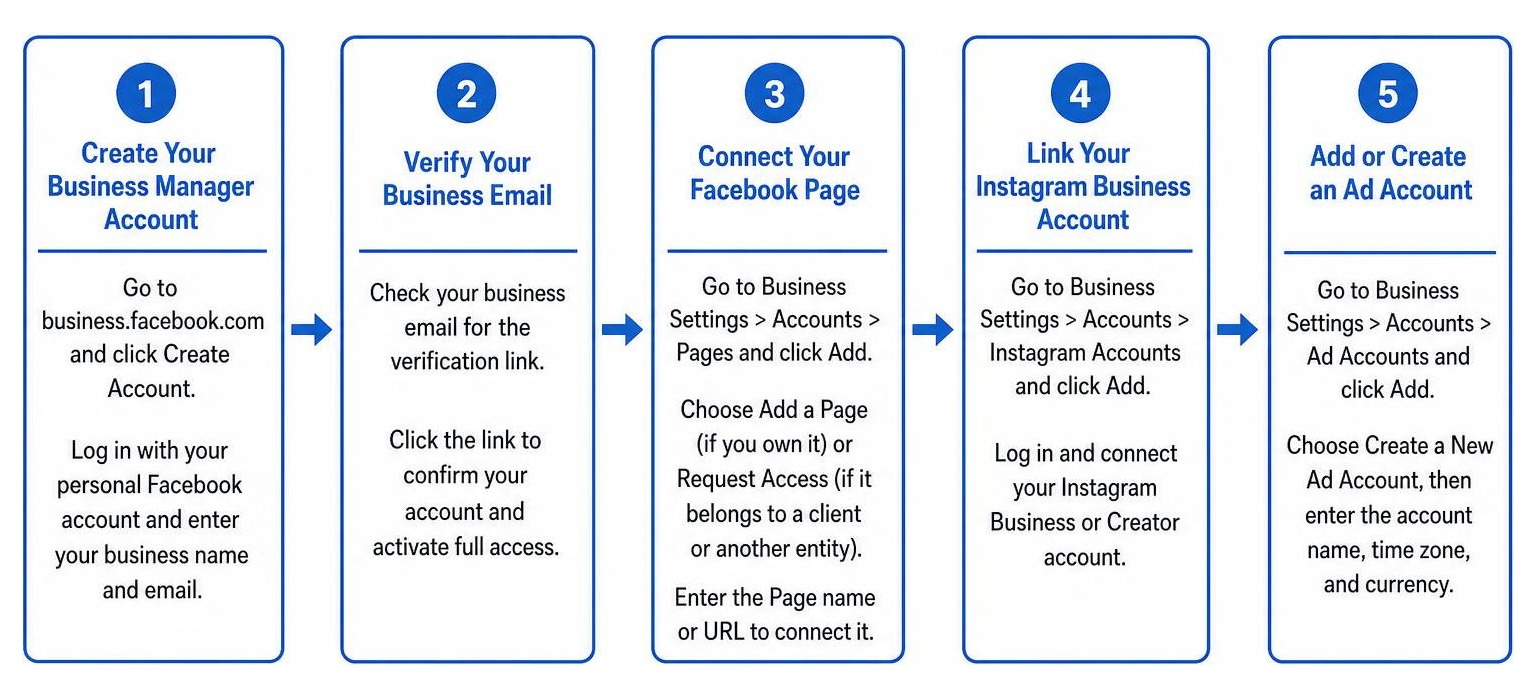
Follow these step-by-step instructions to get set up:
-
Create Your Business Manager Account: Navigate to
business.facebook.comand click Create Account. Log in using your personal Facebook credentials (this simply verifies your identity; your personal details remain hidden from clients or team members). Enter your official business name, your primary business email address, and complete the basic setup prompts. - Verify Your Business Email: Meta will send an activation link to your business email. Open it and confirm your account immediately to unlock full management capabilities.
- Connect Your Facebook Page: Inside your new dashboard, navigate to Business Settings > Accounts > Pages. Click Add, then select Add a Page if you already own your store's Facebook Page, or Request Access if it belongs to a client or separate entity. Type in the Page name or URL to claim it.
- Link Your Instagram Business Account: Go to Business Settings > Accounts > Instagram Accounts. Click Add and enter your Instagram credentials. Ensure your Instagram profile is set as a Business or Creator account rather than a personal profile.
- Add or Create an Ad Account: Under Business Settings > Accounts > Ad Accounts, click Add. Choose Create a New Ad Account, enter your account name, assign your time zone, and select your local operating currency.
- Set Up Payment Methods: Under Business Settings > Payment Methods, add a credit card or debit card to fund your account spend cleanly.
- Complete Business Verification: In your Business Settings, head down to the Security Center and click Start Verification. Upload official documentation—such as a business license, utility bill, or articles of incorporation—matching your business address. Completing business verification confirms your legitimacy to Meta, unlocking higher daily spend limits, access to advanced capabilities like the Conversions API, and faster processing if you ever need to submit appeal requests.
Team Permissions and Security Controls
Keeping your ad account secure requires granular access controls. Over-granting access is a major security risk. We recommend limiting full Admin privileges to a maximum of two trusted individuals (for example, the business owner and one primary operations lead).
When adding staff or contractors:
- Employee Access: Assign team members Employee access by default. This allows them to work on assigned assets without giving them full control over business settings, billing, or security.
- Granular Asset Sharing: Assign staff members specific permissions per asset. A social media coordinator might receive content creation rights on your Facebook Page, while a media buyer receives full campaign creation access inside the ad account without seeing payroll or bank settings.
- Partner Access: Never ask an external agency or vendor to log in using an employee invite or personal credentials. Instead, use the Partners feature under Business Settings. Provide your agency with your 15-digit Business ID so they can request asset permissions directly from their own Business Manager interface.
- Two-Factor Authentication (2FA): Require two-factor authentication for every user in your Security Center. This simple step prevents unauthorized logins and protects your payment methods.
For technical setups or developers looking to automate programmatic access across assets, review the technical requirements outlined in the official documentation for Get Started with Business Management APIs.
Navigating the Meta Business Ad Manager Interface
Once your Business Manager is configured, open Ads Manager to access your campaign execution dashboard. Navigating the meta business ad manager interface is easy once you understand its core three-level structure.
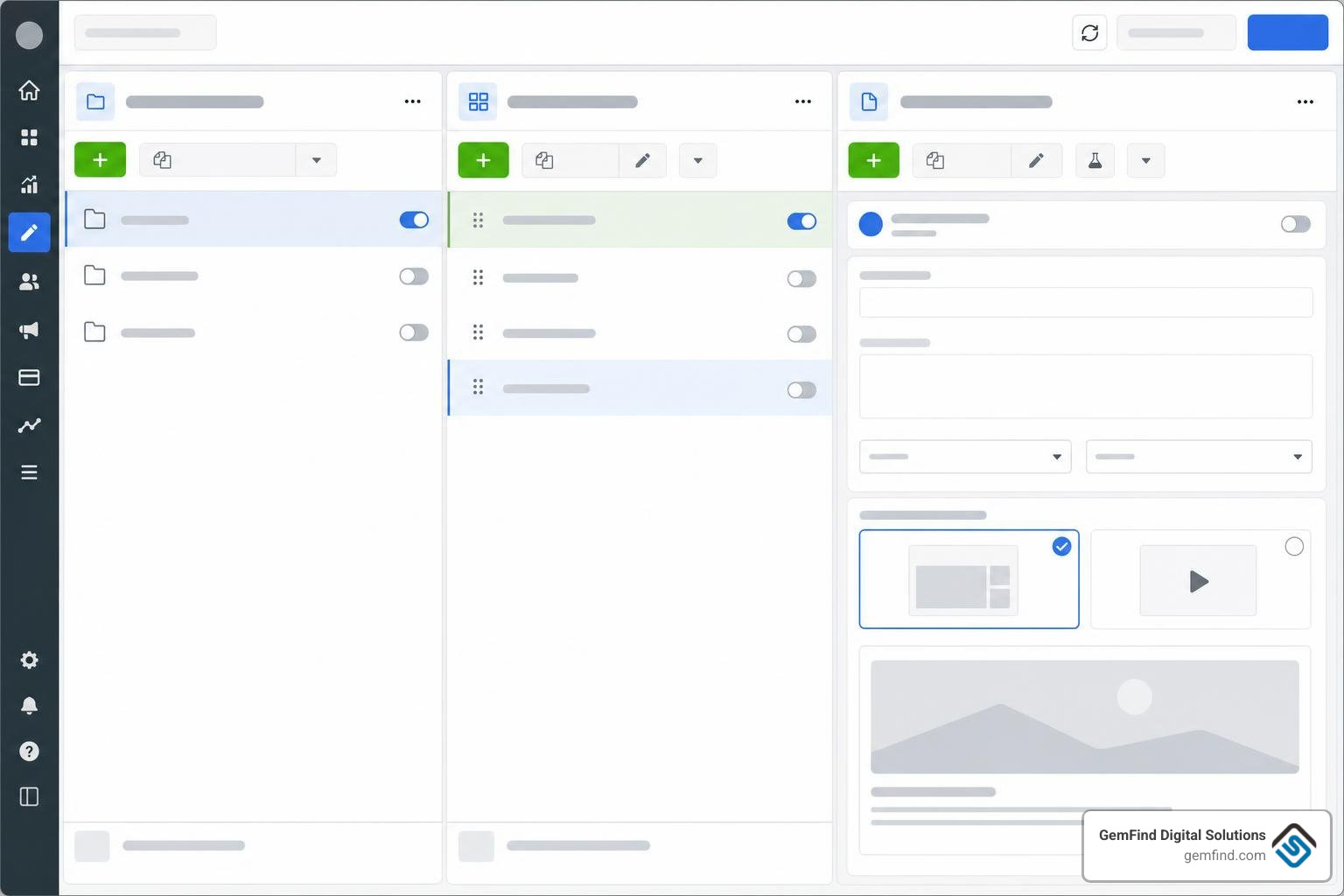
- Campaign Level: This top layer dictates the primary advertising objective (e.g., Sales, Leads, Engagement, Traffic). Setting your objective here determines how Meta's algorithm optimizes delivery across the rest of the funnel.
- Ad Set Level: This middle layer defines your targeting strategy. Here, you configure audience demographics, custom targeting, geographic parameters, budget strategy (daily vs. lifetime), bid rules, and specific ad placements (e.g., Instagram Reels, Facebook Feed).
- Ad Level: This final creative layer contains what your customers actually see and interact with, including images, video assets, primary text copy, headlines, call-to-action (CTA) buttons, and website URL destinations.
Use the top left dropdown selector in Ads Manager to ensure you are operating inside the correct ad account, especially if you manage multiple business profiles. For an in-depth breakdown of native workflows and setup strategies, explore our full Meta Ads Management Complete Guide.
Step-by-Step Guide to Launching Campaigns in Meta Ads Manager
Launching high-ROI campaigns requires aligning your campaign goals directly with Meta's underlying bidding machinery.
When creating a campaign, Meta presents streamlined top-level objectives:

- Sales: Optimized for driving revenue, e-commerce checkouts, and catalog purchases.
- Leads: Designed for collecting customer information via instant forms, landing page submissions, or phone inquiries.
- Engagement: Ideal for maximizing video views, post interactions, messaging conversations (Messenger, WhatsApp, Instagram Direct), or page likes.
- Traffic: Configured to send visitors to a specific landing page or website URL.
- Awareness: Maximize reach and impression volume to keep your brand top-of-mind.
For jewelry retailers, Sales and Leads yield the most direct return on investment. If your goal is online e-commerce sales, choose Sales. If you want shoppers to schedule an in-store bridal consultation, select Leads or Sales mapped to booking events.
Building Audiences and Targeting Strategies
Meta's audience engine allows you to connect with precisely the right prospective buyers. Successful campaigns generally mix three audience types:
- Core Audiences: Built using demographic indicators, geographic radiuses, and interest targeting. For local jewelry stores, set a geographic radius around your physical showroom (e.g., a 15-mile radius around your city) combined with relevant interests like "Engagement ring," "Diamond jewelry," or "Anniversaries."
- Custom Audiences: High-intent audiences created from your existing business data. You can build Custom Audiences from website visitors tracked by the Meta Pixel, custom customer email lists uploaded securely, video viewers, or Instagram profile interactions.
- Lookalike Audiences: AI-generated audiences composed of new users who share characteristics with your best existing customers. You can build a 1% Lookalike Audience based on high-value seed lists, such as previous purchasers or customer consultation bookings.
To learn more about scaling reach using lookalikes, read our step-by-step walkthrough on How To Set Up Look Alike Audiences On Facebook For Your Jewelry Store. To re-engage high-intent shoppers who left your site without buying, check out our guide on Why Remarketing Ads On Facebook Work.
Designing Effective Ad Creatives and Placements
Your creative assets do the heavy lifting of pulling users out of their daily scrolling feed. Inside Ads Manager, you can choose from multiple high-performing formats:
- Single Image or Video: Clean, high-resolution visuals showcasing featured pieces, studio shoots, or behind-the-scenes craft videos. Vertical 4:5 and 9:16 video formats dominate mobile engagement.
- Carousel Ads: A multi-card format letting shoppers swipe through up to 10 images or videos, each with its own link destination. Perfect for displaying collections, like various engagement ring settings or complementary jewelry pieces.
- Dynamic Creative: An automated tool where you upload multiple headlines, descriptions, images, and videos. Meta automatically tests different combinations to deliver the highest-performing asset pairing to each user.
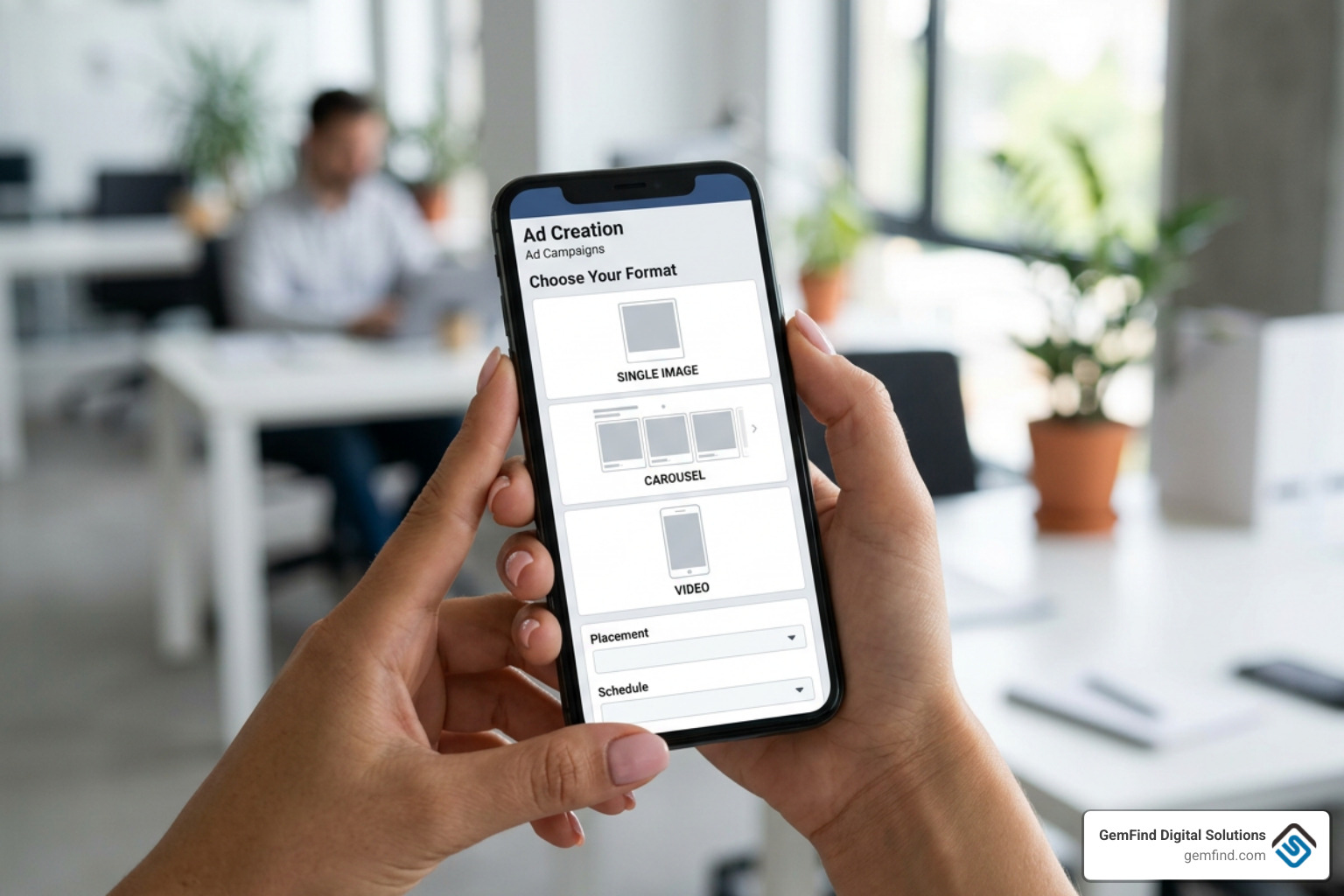
When selecting placements, keep Advantage+ Placements enabled. This allows Meta's system to distribute ad budget dynamically across Facebook Feed, Instagram Stories, Reels, Audience Network, and Messenger based on where you get the lowest Cost per Result.
To analyze what creative styles and offers top competitors are running in real-time, leverage the official Facebook Ads Library.
Mastering Advantage+ Automation, the Learning Phase, and Analytics
Meta relies heavily on machine learning to automate campaign delivery and creative selection through its Advantage+ Suite. Understanding when to utilize automation—and when to maintain manual controls—is key to scaling profitably.
Key automated tools include:
- Advantage+ Shopping Campaigns (ASC): End-to-end automated e-commerce campaigns that combine creative rotation, budget management, and placement strategy to maximize sales performance.
- Advantage+ Budget Strategy (formerly CBO): Automatically allocates your total daily budget to the highest-performing ad sets in real time.
- Automated Rules: Function as your campaign safety net. You can set conditional logic within Ads Manager to protect your budget—for example, automatically pausing an ad set if its Cost per Click (CPC) rises above $3.00, or increasing daily spend by 15% when Return on Ad Spend (ROAS) exceeds 3.5 over a 3-day window.
Demystifying the Learning Phase
Whenever you launch a new ad set or make a significant edit to an active one, Meta enters the Learning Phase. During this period, the algorithm tests different placements, audiences, and delivery times to figure out how to optimize performance.
Your delivery status column will display Learning until the ad set achieves approximately 50 conversion events within a 7-day window.
If your campaign fails to reach this event threshold, its status will shift to Learning Limited. This means Meta's delivery system lacks enough conversion data to optimize efficiently.
To prevent campaigns from getting stuck in Learning Limited:
- Consolidate Ad Sets: Avoid splitting small budgets across too many ad sets or granular audience groups.
- Select Realistic Optimization Events: If your daily budget cannot generate 50 completed purchases per week, adjust your optimization event higher up the funnel (e.g., optimize for "Add to Cart" or "Lead Form Completion").
- Avoid Frequent Edits: Refrain from changing budgets by more than 20%, adjusting audience parameters, or swapping ad copy while the learning phase is active, as major edits reset the optimization counter back to zero.
Interpreting Metrics and Customizing Campaign Reports
To evaluate your campaign health, customize your Ads Manager dashboard metrics. Avoid judging success on surface vanity metrics alone (like raw post impressions or post likes). Instead, focus on conversion-focused indicators.

Click the Columns: Performance dropdown icon in Ads Manager and select Customize Columns. Ensure these core metrics are included in your custom view:
- Results: The total number of objective completions achieved (e.g., Purchases, Leads).
- Cost per Result (CPA): Total spend divided by total results.
- Amount Spent: Total investment committed to date.
- Click-Through Rate (CTR): The percentage of viewers who clicked your ad link.
- Return on Ad Spend (ROAS): Total tracked revenue divided by total ad spend.
- Frequency: The average number of times each unique individual saw your ad.
To inspect cross-platform variances, use the Breakdown button. Select By Delivery > Platform or Placement to isolate performance across Instagram Stories, Reels, and Facebook Feed individually.
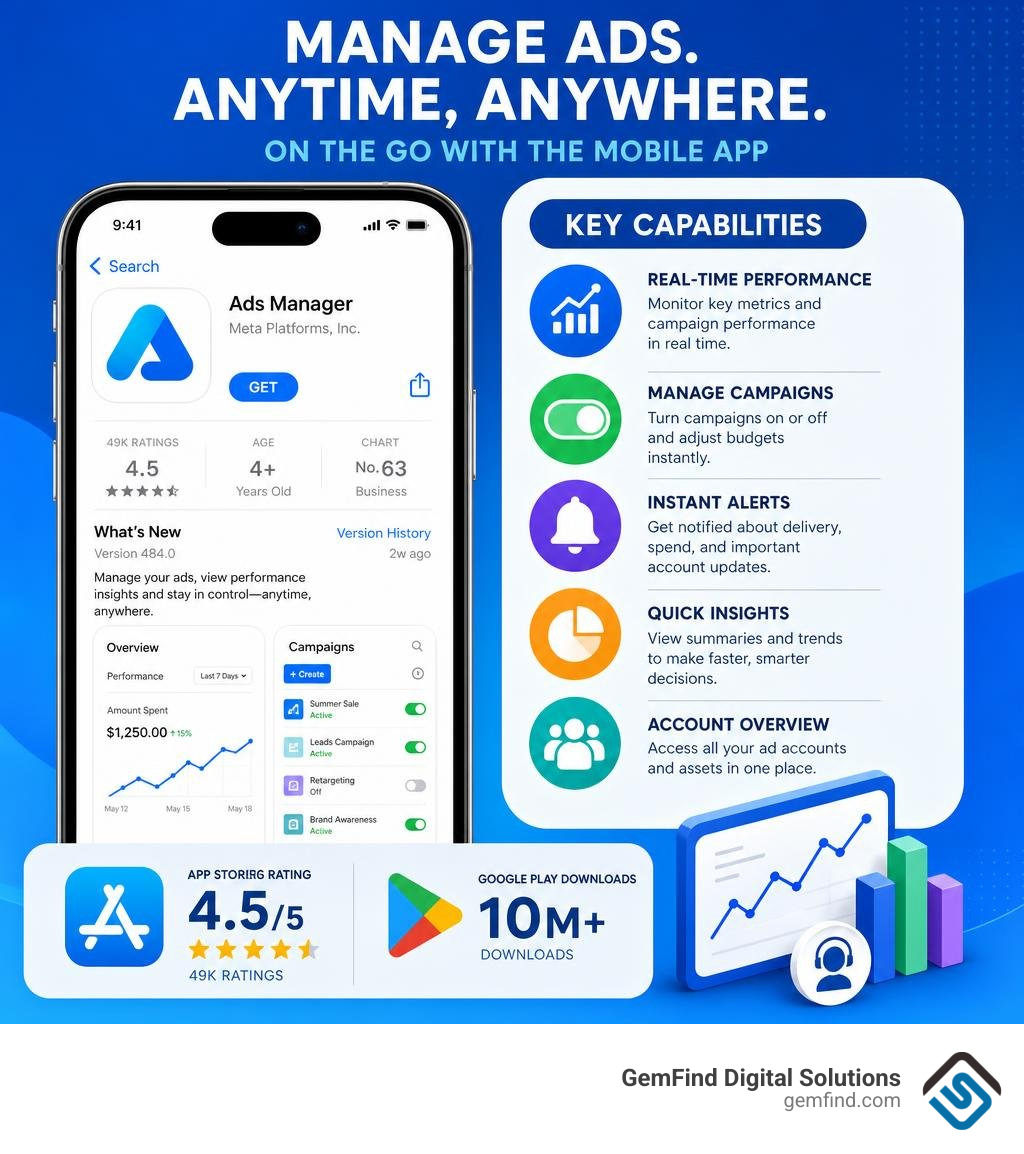
For checking performance on the go, download the Meta Ads Manager mobile app (available on iOS and Android). The app maintains a 4.5/5 rating across 49K Apple App Store reviews and over 10 million downloads on Google Play. While desktop is the command center for launching campaigns and building complex reports, the mobile app serves as an excellent field tool to check real-time stats, toggle campaigns on or off, and manage daily spend while traveling. Download it directly from the Meta Ads Manager App - App Store.
Troubleshooting Common Meta Business Ad Manager Account Issues
Navigating the Ads Manager interface occasionally presents unexpected technical speedbumps. Here is how to resolve common platform issues:
- Buttons Are Greyed Out or Unclickable: This issue typically occurs for three reasons: your browser has not finished loading backend workspace assets, you do not possess proper asset permissions, or you have selected the wrong ad account. Ensure your user profile holds Admin or Advertiser access inside Business Settings > Ad Accounts.
-
Ad Account Cannot Be Found: Verify that you have selected the correct ad account using the top left dropdown account selector. If it is still missing, visit
business.facebook.com/settingsto confirm your personal account is assigned to the appropriate ad account asset. - Disabled Ad Accounts or Rejected Ads: If Meta flags an ad creative or disables an account due to security compliance triggers, navigate to Account Quality to view the specific policy flag. Submit an official review request immediately.
Partner platforms can also resolve compliance issues programmatically. For developer details on batch appeal APIs, check the Appeals APIs Documentation, which allows submitting up to 50 ad account or Business Manager appeal requests per single API call.
Frequently Asked Questions
What is the main difference between Meta Business Suite and Meta Ads Manager?
Meta Business Suite is designed for page managers and social media coordinators to publish organic posts, schedule stories, reply to cross-platform direct messages, and monitor social community growth. Meta Ads Manager is built specifically for paid performance marketing, offering advanced audience targeting, complex budget strategies, creative split testing, custom conversion tracking, and in-depth analytics.
What should I do if my ad set status displays Learning Limited?
If an ad set displays "Learning Limited," Meta's algorithm is not receiving enough data (typically 50 conversion events in 7 days) to optimize efficiently. You can fix this by merging smaller audience ad sets together to centralize budget, optimizing for a higher-funnel action (such as "Add to Cart" instead of final "Purchase"), or slightly expanding your geographic or interest targeting parameters.
Why can't I see or edit my ad campaigns in Ads Manager?
This usually happens because you have selected the wrong ad account in the top left account dropdown menu, your personal user access lacks "Admin" or "Advertiser" permissions for that specific ad account asset, or you are viewing an unassigned draft view. Check business.facebook.com/settings under Accounts > Ad Accounts to verify your specific asset permissions.
Conclusion
Mastering the meta business ad manager is one of the most effective ways to build a reliable growth engine for your jewelry business. By organizing your Meta Business Manager, assigning proper security permissions, launching structured campaigns, and tracking clear sales metrics, you can confidently turn digital ad dollars into measurable foot traffic and online purchases.
Success in paid advertising comes down to continuous testing, dynamic creative execution, and making data-backed optimizations. As your campaigns gather momentum, monitoring your performance metrics will ensure your budget is always directed toward your highest-returning channels.
If you are ready to take your advertising to the next level without the headache of managing daily campaigns yourself, our team is here to help. Explore our specialized Meta Ads Management services at GemFind Digital Solutions to discover how our 25+ years of jewelry industry marketing expertise can scale your store's sales today.


