


Take Control of Your Marketing Assets With Meta Business Manager

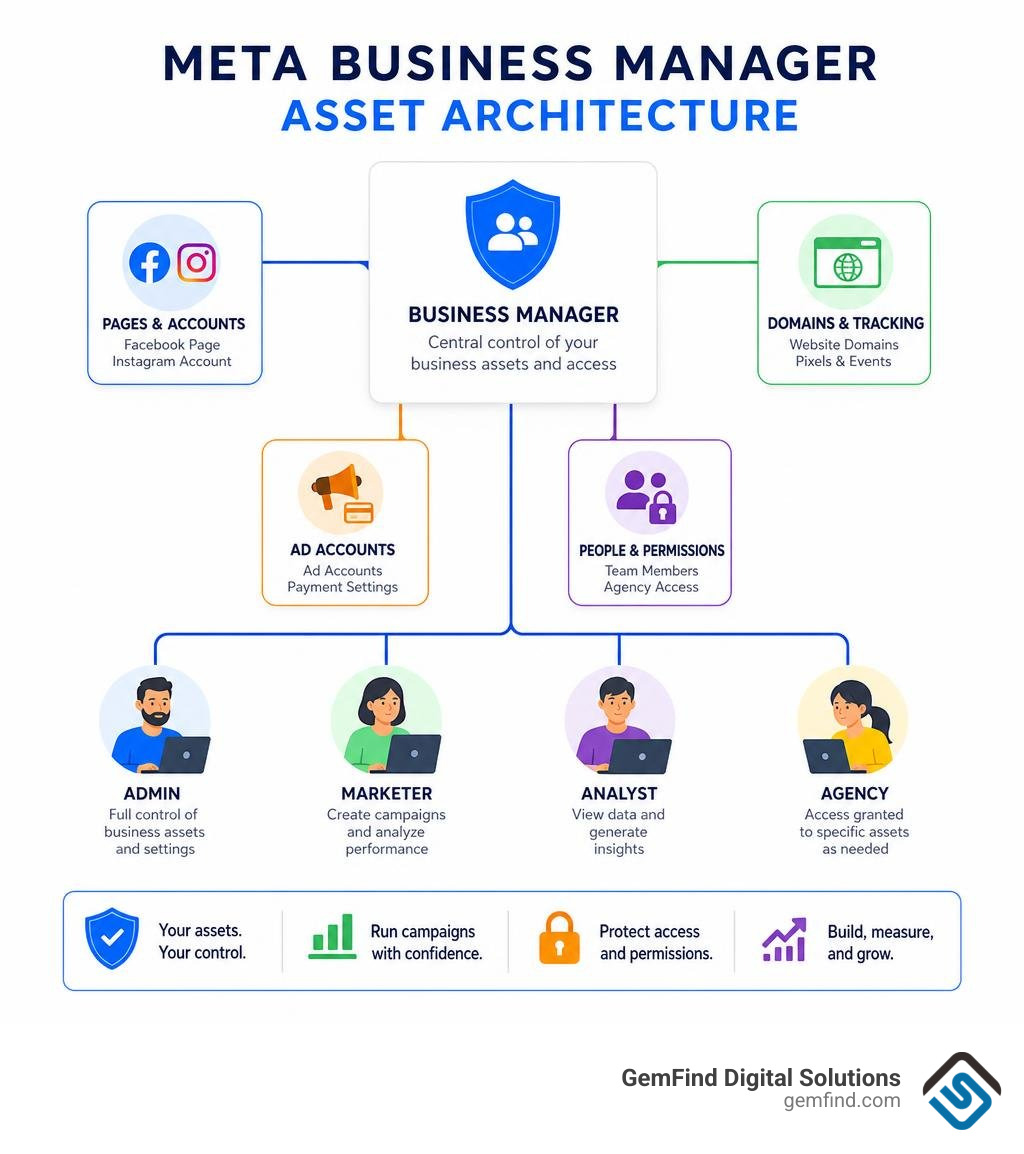
Meta Business Manager is Meta's central control center for the Facebook Pages, Instagram accounts, ad accounts, pixels, domains, and team access tied to your business. Now commonly accessed through Meta Business Suite and a Business Portfolio, it helps a jewelry store keep valuable marketing assets under business ownership rather than in a former employee's or agency's personal account.
| What it helps you manage | Why it matters |
|---|---|
| Facebook and Instagram accounts | Keep your brand channels connected and accessible |
| Ad accounts and payment settings | Run and review campaigns from the right business account |
| Website domains and tracking | Measure visits, leads, and online sales more reliably |
| Team and agency permissions | Give people only the access they need |
For a jeweler, this structure is not just admin work. It is the foundation for promoting collections, responding to inquiries, tracking ad results, and protecting access to the accounts that support your online sales.
I am Anthony Arechiga, Vice President of Sales at GemFind Digital Solutions, where I have worked since 2007 helping jewelry businesses grow through web design, digital marketing, and e-commerce. In this guide, I will explain how Meta Business Manager can help you organize and protect the assets behind your marketing.
Discover more about meta business manager:
- Meta Ads Management
- Meta Business Ad Manager
- Meta Business Suite Ads Manager
What is Meta Business Manager and Meta Business Suite?
When managing your jewelry store's online presence, it is easy to get confused by Meta's changing terminology. Originally launched as Facebook Business Manager, Meta updated its backend infrastructure to create Meta Business Suite and Business Portfolios.
At its primary core, meta business manager serves as the administrative foundation for holding ownership of business assets. Meanwhile, Meta Business Suite is the everyday workspace and interface where business owners, creators, and social media managers handle daily operational activities across Facebook, Instagram, Threads, and WhatsApp.
To learn more about how these systems operate together, you can review How Meta Business Suite works | Meta Business Help Centre.
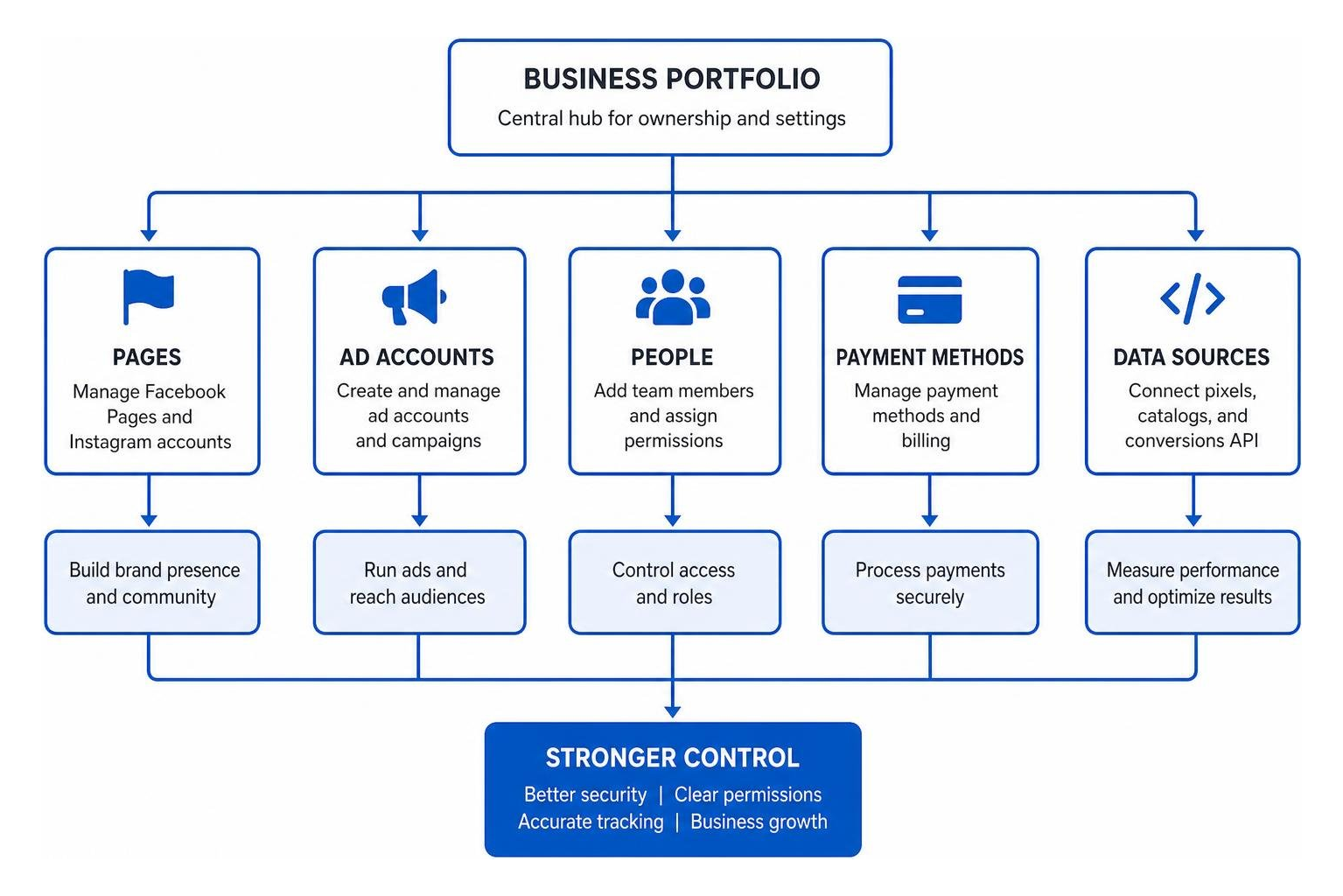
The primary purpose of a Meta Business Portfolio is centralization and asset security. Rather than linking a company's Facebook Page to a founder's personal profile or allowing an external freelancer to set up ad accounts under their personal login, a Meta Business Portfolio establishes corporate ownership.
Key capabilities provided by Meta Business Suite include:
- Unified Inbox: Communicate with shoppers across Facebook Messenger, Instagram Direct Messages, and WhatsApp from a single desktop or mobile interface.
- Cross-Platform Analytics: Track cross-platform audience growth, engagement rates, reach metrics, and ad results in unified reporting dashboards.
- Content Scheduling: Plan and publish posts, Stories, and Reels simultaneously across Facebook and Instagram.
- Centralized Asset Management: Link catalogs, payment methods, ad accounts, and tracking pixels safely under one umbrella.
Navigating the Meta Business Manager Workspace
Navigating your Meta workspace efficiently depends on whether you are working from a desktop browser or on the go using a mobile device.
On desktop, logging into your business portfolio brings you into Meta Business Suite, where a left-hand navigation panel grants fast access to your Content Planner, Unified Inbox, Ads Manager, Insights, and Settings. If you need deeper control over ad account structure, ad placement, or billing settings, you can seamlessly navigate to Meta Business Suite Ads Manager.
For mobile management, Meta provides dedicated applications. The Meta Business Suite app has achieved over 100 million downloads on Google Play with a 4.6-star rating across 5.2 million reviews. On the Apple App Store, it holds a 4.7-star rating from over 490,000 reviews. The iOS app requires iOS 15.1 or later, takes up roughly 329.7 MB of storage, and supports 33 languages—including English, Spanish, French, German, and Japanese.
While the mobile app excels at quick content publishing, replying to customer inquiries, and monitoring daily campaign performance, complex administrative duties—such as domain verification, adding new pixels, or reassigning employee permissions—are best handled on the desktop interface to avoid mobile display limitations.
Key Features for Creators and Content Management
For jewelry retailers who act as content creators, show off custom ring fabrications, or broadcast live video events, Meta Business Suite packs a robust set of publishing and audience-building tools.
To explore all specialized creator functions, visit Meta Business Suite - Facebook for Creators.
Key features include:
- Calendar View & Scheduling: Organize video releases, product spotlights, and seasonal promos weeks in advance.
- Bulk Video Upload: Save hours by uploading and scheduling multiple video assets simultaneously.
- Facebook Collabs: Co-author posts with industry influencers or brand partners so content publishes directly to both Pages, merging audience reach.
- Episodic Collections: Group showcase videos into ordered playlists or series. Meta’s algorithm actively recommends structured collections to engaged viewers, driving higher organic distribution.
- Inspiration Hub: Analyze trending daily content, popular audio tracks, and successful posts from similar creators to refine your creative strategy.
- Monetization Tools: Manage brand deals, track video ad revenue eligibility, and configure payout options in one unified place.
How to Set Up Your Meta Business Portfolio and Assets
Setting up your meta business manager portfolio correctly from day one prevents costly technical headaches later on.
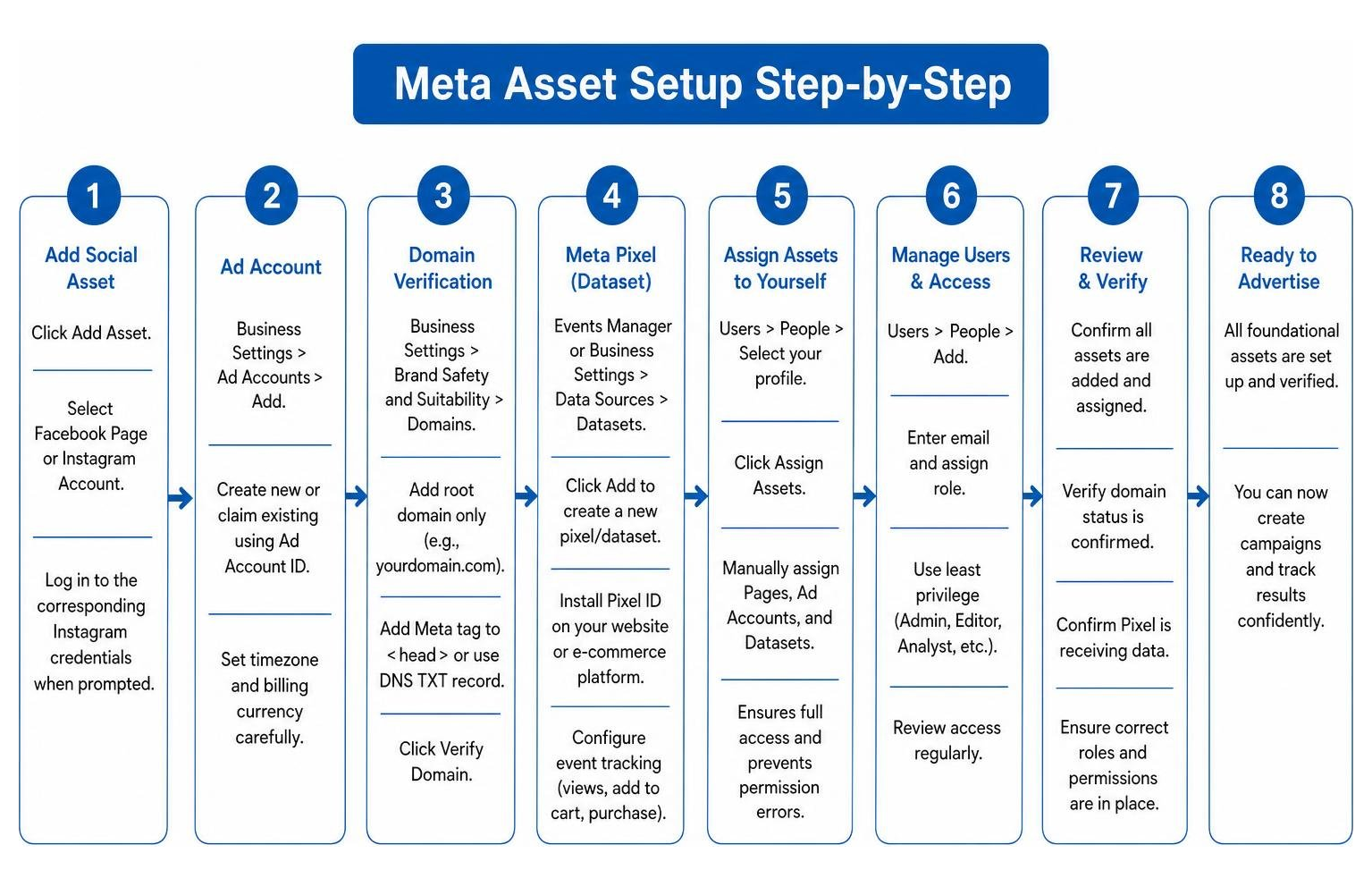
To create a new business portfolio:
- Visit business.facebook.com on a desktop web browser.
- Log in using the personal Facebook account tied to your business identity. (Note: Using your personal login is required for identity verification, but your personal personal profile details remain hidden from colleagues and clients).
- Click Create Account or Create Portfolio.
- Enter your official business name, your name, and your business email address.
- Check your inbox and click the verification link sent by Meta to complete email verification.
For a detailed step-by-step visual walkthrough, check out How to setup Meta Business Manager - YouTube or read our complete Meta Business Ad Manager Guide 2026.
Checking Ownership and Adding Facebook Pages or Instagram
Before adding assets to a new portfolio, you must verify if your existing Facebook Page is already owned by another Business account (such as one created years ago by a former digital marketing contractor).
To check Page ownership:
- Open your Facebook Page in a browser and go to Page Settings.
- Click on Page Access.
- Look under Business Account Access below Page Roles. If a Business Manager name appears there, that portfolio officially owns the Page.
If you already possess admin rights to your Facebook Page and Instagram account, adding them to your new meta business manager is simple:
- Navigate to Business Settings > Business Assets (or Pages / Instagram Accounts).
- Click Add Asset.
- Select Facebook Page or Instagram Account.
- Log into the corresponding Instagram credentials when prompted.
Pro Tip: To avoid connection errors when linking Instagram, ensure you are already logged into the exact Instagram account in another tab on the same web browser.
Configuring Ad Accounts, Pixels, and Domain Verification
To run advertising campaigns and track website conversions, you must configure three key foundational elements: your Ad Account, Meta Pixel (Datasets), and Website Domain.
Creating or Claiming an Ad Account: Go to Business Settings > Ad Accounts > Add. Choose to create a brand new Ad Account or claim an existing one using its Ad Account ID. Set your correct timezone and billing currency carefully, as these cannot be easily changed later. If you are new to advertising, check out our guide on Facebook Ads 101 For Jewelers.
-
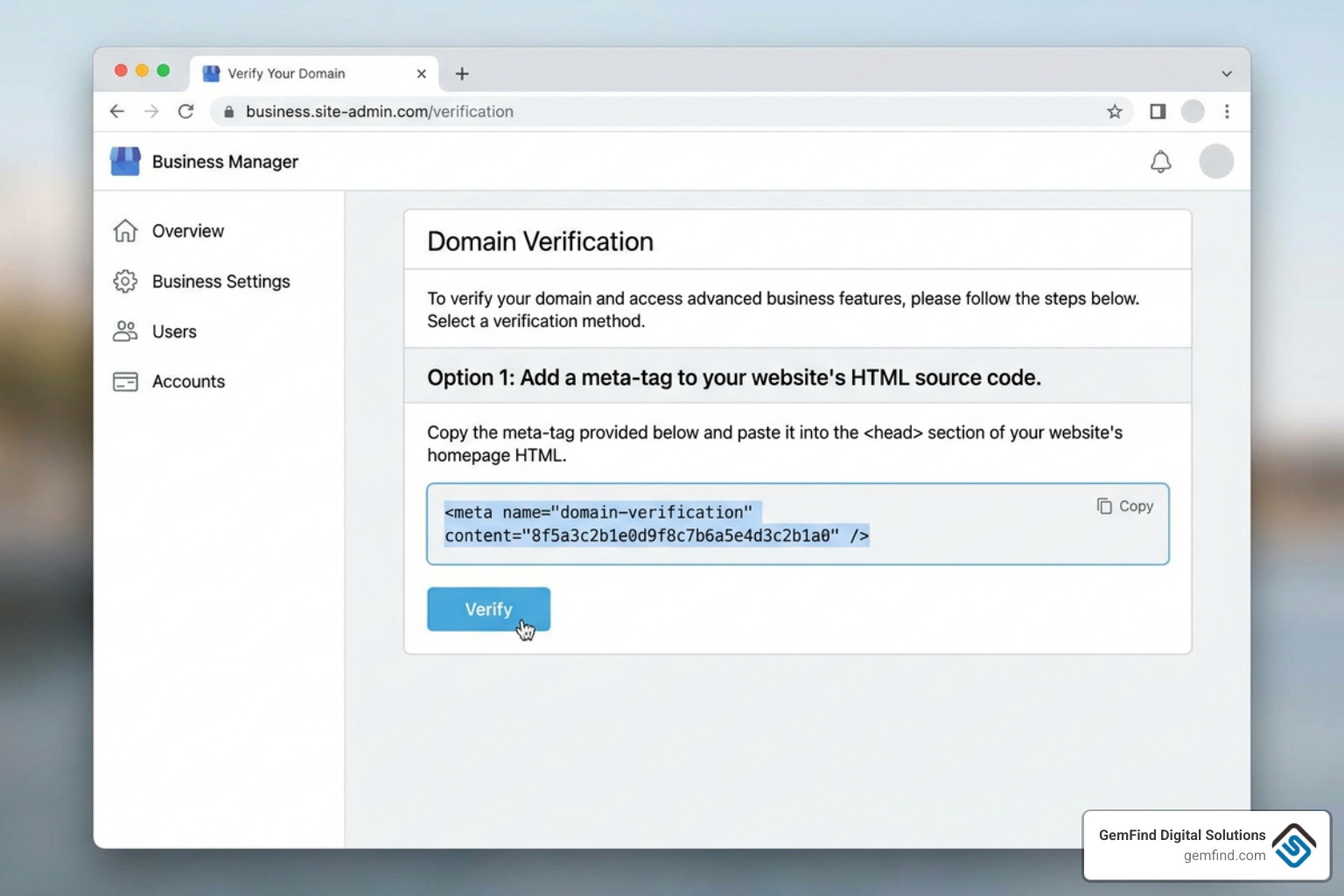
Domain Verification: Under Meta rules, domain verification is mandatory before running ads that send users to an external website.
- Go to Business Settings > Brand Safety and Suitability > Domains.
- Click Add and enter your root domain only without "www" (for example,
yourjewelrystore.com). - Copy the provided Meta tag (e.g.,
<meta name="facebook-domain-verification" content="unique_code_here" />) and paste it into the<head>section of your e-commerce store code (such as Shopify), or select the DNS TXT record method. Click Verify Domain.
-
Setting Up the Meta Pixel (Dataset):
- Navigate to Events Manager or Business Settings > Data Sources > Datasets.
- Click Add to generate a new tracking dataset/pixel.
- Install the Pixel ID into your e-commerce platform integration.
- Setting up event tracking allows you to measure product views, add-to-cart events, and completed checkout orders—which powering powerful automated dynamic retargeting. Read more about Why Remarketing Ads On Facebook Work.
Explicit Asset Assignment: Even if you are the creator of the business portfolio, Meta requires you to manually assign newly created assets (Pages, Ad Accounts, Datasets) to your own user profile under Users > People > Assign Assets. Without explicit assignment, you will receive permission errors when trying to run ads.
User Permissions and Access Control
Keeping your marketing accounts secure requires tight access management. Granting full admin power to every staff member or external consultant opens your business up to accidental settings changes or lockouts.
Managing Roles and Permissions in Meta Business Manager
Within meta business manager, access levels are split primarily into two user levels:
- Admin Access (Full Control): Admins can modify business settings, delete the portfolio, add or remove payment methods, invite or remove users, and assign asset permissions.
- Employee Access (Partial Control): Employees can only work on specific assigned assets (such as drafting posts on a Page or building campaigns inside an Ad Account) without changing overall account architecture or user lists.
To invite team members safely:
- Go to Business Settings > Users > People.
- Click Add People.
- Type the work email address of the team member.
- Select Employee Access or Basic Access (reserve Full Control for owners/co-founders).
- Specify which Pages, Ad Accounts, or Datasets they are allowed to manage, and toggle specific task permissions (such as Create Content, Analyze Performance, or Manage Ads).
- Click Send Invitation.
Security Best Practices:
- Maintain at least two Business Admins: Always assign at least two trusted individuals as Business Admins. If one owner's personal Facebook account gets locked or hacked, the secondary admin can maintain access and prevent the business from being permanently locked out.
- Enforce Two-Factor Authentication (2FA): Under Business Info, set 2FA requirements to All Employees or Everyone to protect against unauthorized account entry.
- Mind API Invitation Limits: When inviting employees programmatically via Meta's Graph API, be aware that Meta enforces strict rate limits. Exceeding invitation thresholds triggers Error Code 17, requiring a 24-hour waiting window.
Advanced Management: API Integration, Invoicing, and Partner Access
For growing brands, digital marketing agencies, and software platforms handling multiple client portfolios, managing assets manually in the user interface can become inefficient. Meta provides developer tools and API endpoints to automate asset management and agency relationships.
For technical documentation, review Get Started - Business Management APIs - Documentation - Meta for Developers.
When digital agencies manage accounts for retail clients, Meta recommends using the Business On Behalf Of (OBO) framework. Detailed guidance is available at On Behalf Of - Business Management APIs - Documentation - Meta for Developers.
Instead of asking clients for personal user logins or standard user tokens that expire when personnel leaves, the OBO API automatically creates non-expiring System Users under the client’s Business Manager (named {Client_Business_Name} SYSTEM USER).
| Feature / Criteria | System User Access Tokens | Standard Personal User Tokens |
|---|---|---|
| Expiration | Non-expiring permanent token | Short-lived / Expires periodically |
| Tied To | System account owned by Business Portfolio | Individual personal Facebook account |
| Employee Turnover Risk | Zero impact when staff members leave | High (Token invalidates if staff account changes) |
| Security Verification | Secured via appsecret_proof sha256 hashing |
Secured via personal login authentication |
| Primary Use Case | Automated API scripts, catalog syncing, headless POS | Manual dashboard logins, content creation |
Enterprise advertisers and agencies with high monthly spend can also manage billing programmatically. Facebook Marketing Partners can request a Business Manager Owned Normal Credit Line or set up Dynamic Credit Allocation (DCAF). Under DCAF, an automated script executes approximately every 30 minutes, calculating total approved credit lines minus outstanding balances, distributing credit evenly across active ad accounts. Invoices and monthly spend breakdowns can be pulled automatically using GET requests to the /BUSINESS_ID/business_invoices Graph API endpoint.
Frequently Asked Questions about Meta Business Manager
Is Meta Business Suite the same as Meta Business Manager?
While closely related, they serve different functions. Meta Business Manager is the underlying security architecture that owns and connects your business assets, user permissions, domains, and payment methods. Meta Business Suite is the unified front-end interface where you manage daily social media activities, draft posts, view analytics, and reply to messages across Facebook and Instagram.
How do I check if my Facebook Page is already owned by a business?
Log into Facebook, switch into your Page's profile, and navigate to Settings > Page Access. Look under the section labeled Business Account Access. If a business portfolio name is listed there, that portfolio holds official ownership of the Page. If it is empty, the Page is currently unlinked to a Business Manager.
What is the difference between Admin and Employee roles?
Admins (Full Control) possess unrestricted authority over the entire portfolio. They can add or delete assets, manage payment options, invite or remove staff, and even delete the Business Portfolio. Employees (Partial Control) can only view or manage the specific assets assigned to them by an Admin, without access to administrative business settings.
Conclusion
Taking ownership and control of your social assets, domains, tracking pixels, and advertising tools inside meta business manager is the single most important step in protecting your brand's online presence. By centralizing asset ownership under a official Business Portfolio, enforcing two-factor authentication, and maintaining precise user permissions, you safeguard your marketing channels against lost access or security breaches.
Whether you are seeking to streamline your social channels, verify your e-commerce domain, or run high-converting ad campaigns for your jewelry collections, setting up your Meta ecosystem correctly lays the foundation for measurable online growth.
Need expert assistance setting up your portfolio or running high-ROI ad campaigns tailored specifically to the jewelry industry? Discover how our specialized team at GemFind Digital Solutions can help optimize your brand's digital presence today.


