


Take Control of Meta Campaigns That Drive Jewelry Sales
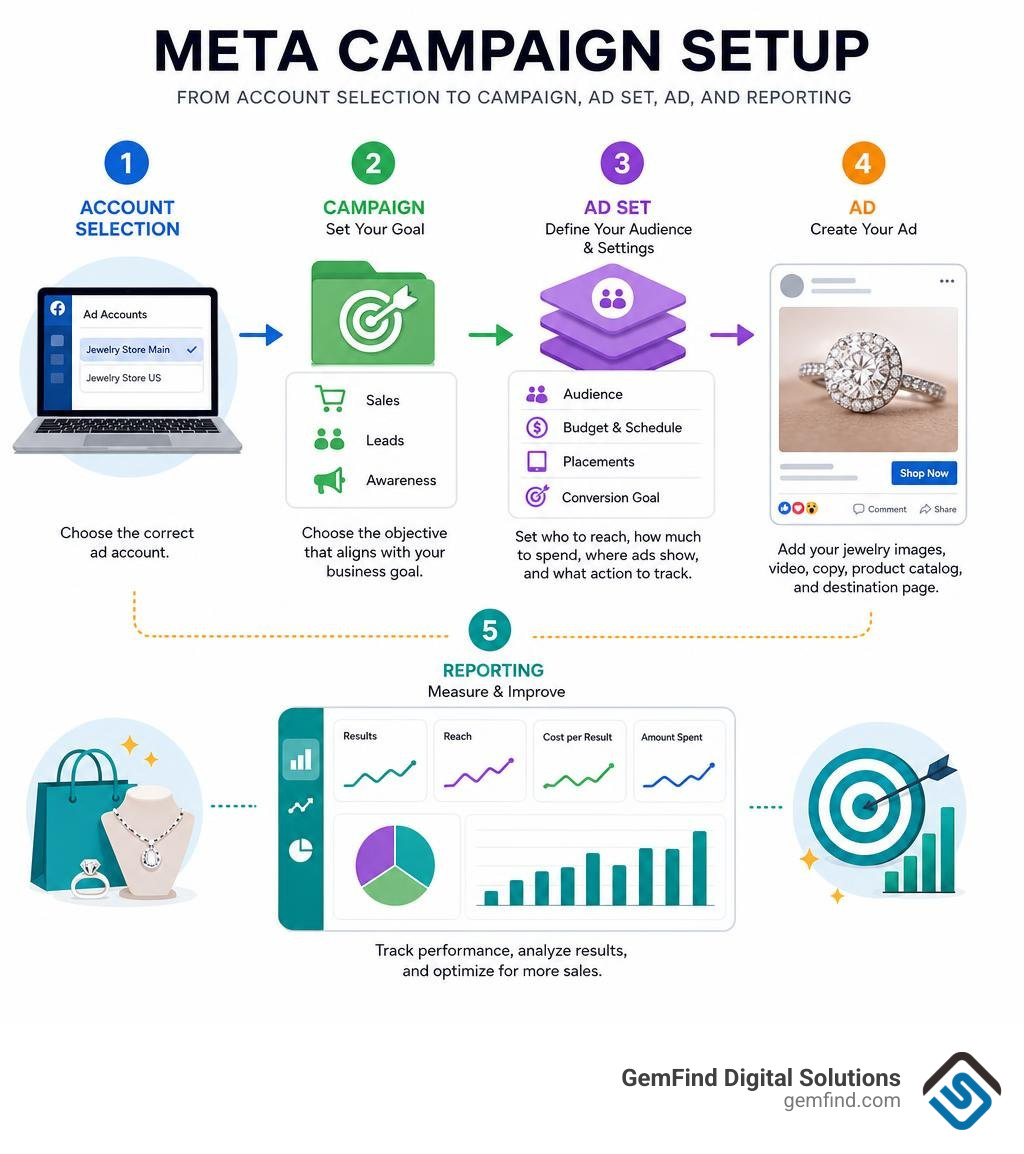
To manage campaigns through the business.facebook.com Ads Manager portal—often found by searching business facebook com ads manager—open Ads Manager, choose the correct ad account, and build ads at three levels:
- Campaign: Choose the goal, such as sales, leads, or awareness.
- Ad Set: Set your audience, budget, schedule, placements, and conversion goal.
- Ad: Add the jewelry images, video, copy, product catalog, and destination page shoppers will see.
For a jewelry store, this structure makes it easier to promote a new collection, retarget website visitors, and see which ads create purchases - not just clicks. Ads Manager gives you deeper controls for targeting, reporting, budgets, and testing than a simple boosted post.
Meta Business Suite is useful for posts, messages, and basic page activity. But Ads Manager is where you should build and optimize campaigns designed to grow online sales across Facebook and Instagram. Start with a clear sales goal, connect your website or shop, use clean conversion tracking, and avoid changing successful campaigns too often while Meta is learning who is most likely to convert.
I am Anthony Arechiga, Vice President of Sales at GemFind Digital Solutions, where I have worked since 2007 helping jewelry businesses grow through web design, e-commerce, and digital marketing. My experience with Meta Ads Manager helps jewelry retailers turn campaign data into smarter advertising decisions and stronger online sales.
Discover more about Meta advertising strategies:
- Meta Ads Management Complete Guide
- Meta Business Ad Manager Guide 2026
- Meta Business Suite Ads Manager
Meta Ads Manager vs Meta Business Suite: Understanding the Core Ecosystem
Navigating Meta's advertising ecosystem can sometimes feel like solving a puzzle where the pieces shift every few months. Many business owners log in expecting a single dashboard, only to find themselves toggling between Meta Business Suite and Meta Ads Manager. Understanding the exact role of each tool is essential for managing your ad spend efficiently.
Meta Business Suite operates as a unified front-office dashboard. It is designed primarily for social media managers and business owners who need to oversee day-to-day organic activities. Within Business Suite, you can schedule posts across Facebook and Instagram, respond to direct messages and comments in a unified inbox, monitor top-level organic insights, and quickly boost an organic post.
In contrast, Meta Ads Manager is built specifically for paid performance marketing. It offers granular control over media buying, algorithmic bidding, deep audience segmentation, conversion attribution, and cross-platform creative deployment across Facebook, Instagram, Messenger, and Audience Network.
| Feature / Capability | Meta Business Suite | Meta Ads Manager |
|---|---|---|
| Primary Purpose | Organic page management & community engagement | Performance advertising & campaign optimization |
| Content Publishing | Organic post/story scheduling & unified inbox | Dark post creation & paid ad variations |
| Campaign Structure | Single-tier post boosts | 3-tier hierarchy (Campaign, Ad Set, Ad) |
| Audience Targeting | Basic demographics & broad geographic radii | Custom Audiences, Lookalikes & detailed behaviors |
| Optimization & Bidding | Automated spend for post engagement | Target ROAS, Cost Caps, Bid Caps, Advantage+ |
| Analytics Depth | Page likes, reach, comments, basic impressions | Granular attribution, breakdowns, ROAS, event tracking |
How to Access business.facebook.com Ads Manager vs Meta Business Suite
Accessing these platforms starts through Meta for Business (formerly Facebook for Business). When you navigate to the main business portal, Meta evaluates your login credentials and routes you to your primary business portfolio.
To jump directly into performance media buying, you can go to Meta for Business (formerly Facebook for Business) or enter the business facebook com ads manager web address directly into your browser navigation bar. If you land inside Meta Business Suite instead, locate the "All Tools" icon (represented by three horizontal lines or a grid) in the left-hand navigation sidebar and select "Ads Manager."
For organizations managing multiple retail locations, e-commerce storefronts, or client accounts, organizing your infrastructure within Meta Business Manager ensures clean separation of assets, ad accounts, and pixel tracking data.
Desktop vs Mobile: When to Use the Meta Ads Manager App
Managing campaigns on the go is often necessary, but using the right device for the right task will save you time and prevent costly setup mistakes.
The Meta Ads Manager mobile app has achieved over 10 million downloads on the Google Play Store with a 4.3-star rating across more than 536,000 reviews. The mobile interface provides real-time campaign monitoring, side-by-side ad set comparisons, push notifications for delivery changes, and the ability to instantly pause underperforming ads when costs spike.
However, desktop remains necessary for heavy lifting. Detailed audience creation, bulk catalog uploads, custom column configurations, automation rules, and deep data breakdowns require the desktop interface. We recommend using desktop for campaign architecture and testing, while reserving the mobile app for monitoring performance metrics, checking alerts, and making emergency budget tweaks.
Mastering the business.facebook.com Ads Manager Dashboard
The core interface of Ads Manager - Meta for Business is designed around a three-tier structure: Campaigns, Ad Sets, and Ads. Mastering this layout allows you to isolate performance variables, test creative formats systematically, and scale high-performing campaigns.

Navigating Campaigns, Ad Sets, and Ads Levels
Structuring campaigns properly prevents audience overlap and ensures Meta’s delivery algorithm finds the best prospects.
- Campaign Level: This is where you establish your ultimate business objective. In Meta's streamlined Outcome-Driven Ad Experiences (ODAX) model, you select from objectives such as Sales, Leads, Engagement, Traffic, App Promotion, or Awareness. Setting up a structured account framework is essential, and our guide on organizing Facebook ads walks you through standardizing your campaign naming conventions.
- Ad Set Level: This layer dictates targeting parameters, daily or lifetime budgets, conversion events, schedules, and placements. Here you can execute strategies for targeting jewelry shoppers on Facebook by defining custom demographic layers, geographic radii around physical stores, and dynamic retargeting windows.
- Ad Level: The final layer contains the creative elements prospects interact with. You select your Facebook Page and Instagram profile, upload visual assets (single image, carousel, or short-form video), write primary copy and headlines, choose call-to-action buttons, and specify landing page URLs.
Unleashing AI with Advantage+ Campaigns and Automation Rules
Meta’s Advantage+ suite leverages machine learning to automate campaign setup and placement optimization:
- Advantage+ Shopping Campaigns (ASC): ASC uses artificial intelligence to test up to 150 creative variations simultaneously, automatically allocating spend to top-performing combinations across demographic segments. While powerful, modifying custom settings inside an Advantage+ campaign can turn off automated machine learning or lower your campaign efficiency score.
- Advantage+ Placements and Creative: These tools automatically adapt images and videos to fit varying aspect ratios across Feeds, Stories, Reels, and Messenger placements, applying automatic brightness adjustments and text enhancements.
- Automated Rules: Serving as your account’s safety net, automated rules protect your ad budget. For instance, you can create a rule that automatically pauses an ad set if the Cost Per Click (CPC) exceeds $3.00 with a Click-Through Rate (CTR) below 0.8% over a 3-day window. Conversely, you can create a rule that increases daily budgets by 15% when the Return on Ad Spend (ROAS) exceeds 3.0 over the last 72 hours.
These automated rules complement dynamic remarketing funnels, demonstrating why remarketing ads on Facebook work so effectively to recapture high-intent shoppers without manual daily adjustments.
Creating High-Converting Shops Ads Directly in Ads Manager
For retailers selling physical inventory, integrating product catalogs directly into Ads Manager bridges the gap between discovery and checkout. According to Meta's official documentation on how to Create a Shops Ad with Meta Ads Manager | Meta Business Help Center, you can direct shoppers seamlessly to either your website or an in-app Facebook/Instagram Shop.
To build a Shops ad:
- Open Ads Manager and click + Create.
- Select Sales as your campaign objective.
- Choose Advantage+ sales campaign to maximize Meta's automated product delivery.
- At the destination step, select Website and Shop to allow Meta to dynamically route buyers to the location where they are most likely to complete a purchase.
- Link your product catalog in Commerce Manager, select your product sets (e.g., diamond engagement rings, bridal bands, or gemstone pendants), and pair them with lifestyle imagery.
Before launching, review competitive creative messaging using the Facebook ads library to evaluate current visual trends and pricing offers in your market.
Analyzing Performance: Reporting, Breakdowns, and the Learning Phase
Launching an ad campaign is only half the battle; interpreting performance data correctly ensures sustainable profitability.

Customizing Metrics and Using the Breakdown Feature
The default columns in Ads Manager only provide a surface-level overview. Customizing your reporting metrics gives you the insights needed to evaluate full-funnel health:
- Top-Funnel Health: Impressions, CPM (Cost Per 1,000 Impressions), and Unique Link Clicks.
- Mid-Funnel Engagement: CTR (Link Click-Through Rate), Cost Per Unique Link Click, and Landing Page Views.
- Bottom-Funnel Conversions: Purchases, Cost Per Acquisition (CPA), Return on Ad Spend (ROAS), and Conversion Value.
The Breakdown button located above the performance table provides deeper visibility into where conversions actually occur. You can segment performance data by:
- Time: Day, week, or month.
- Delivery: Age, gender, country, region, placement (e.g., Instagram Reels vs. Facebook Feed), and device (iOS vs. Android).
- Action: Destination URL, video view duration, and instant experience interactions.
Analyzing these data layers helps you identify underperforming segments, fine-tune your budgets, and apply the best practices outlined in our Meta ads management complete guide.
Managing the Learning Phase and Avoiding Optimization Restarts
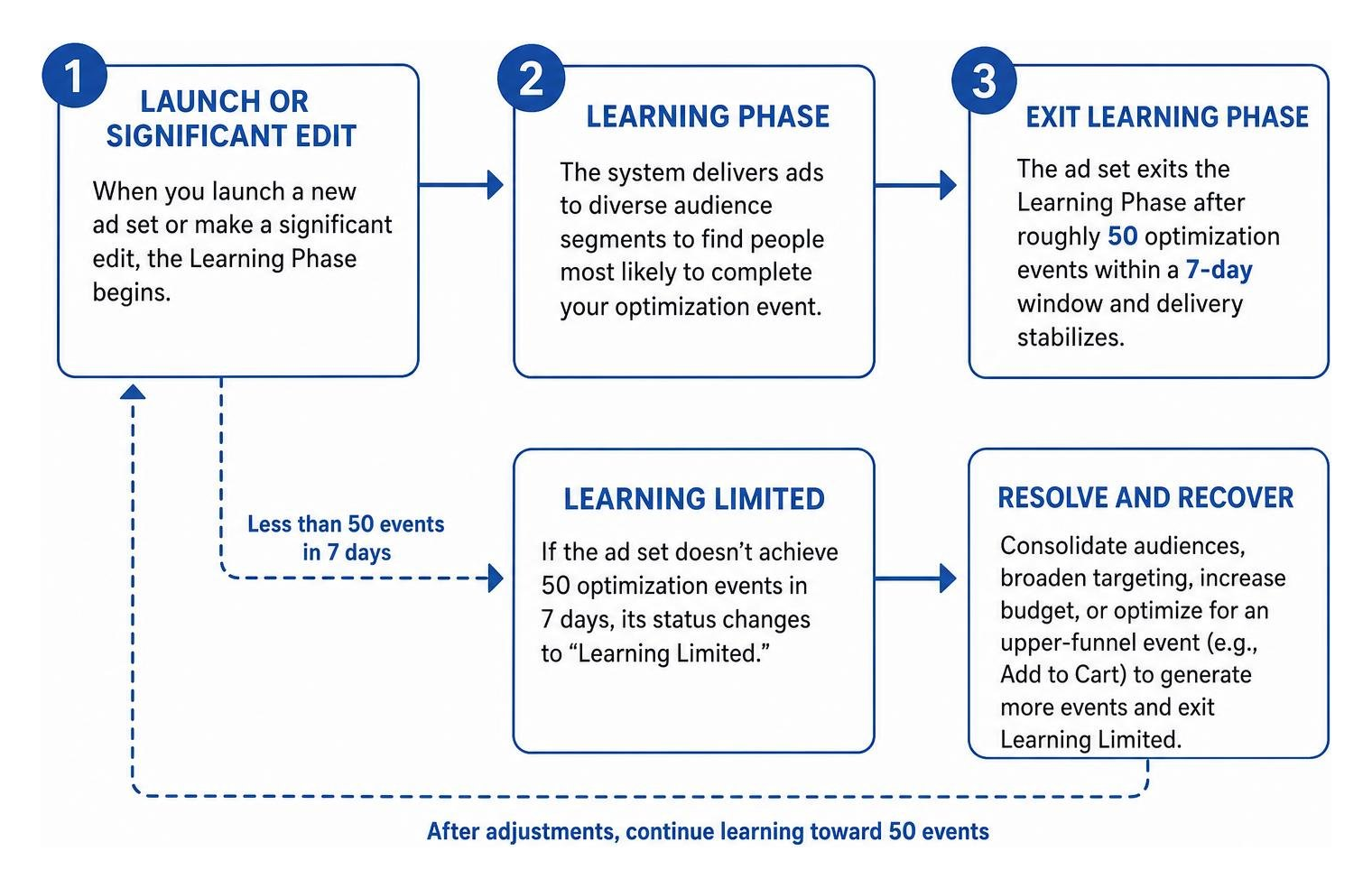
Whenever you launch a new ad set or make a significant edit to an existing one, Meta’s algorithm enters the Learning Phase. During this period, the system delivers ads to diverse audience segments to discover who is most likely to complete your optimization event.
Key considerations for managing the Learning Phase:
- The 50-Event Threshold: An ad set generally requires roughly 50 optimization events (such as purchases or leads) within a 7-day window to exit the learning phase and achieve stable delivery.
- Avoiding Significant Edits: Making substantial edits—such as changing target audiences, swapping creative assets, switching optimization events, or adjusting daily budgets by more than 20%—resets the learning phase back to zero.
- Handling "Learning Limited": If an ad set fails to achieve 50 conversion events in 7 days, its status changes to "Learning Limited." You can resolve this by consolidating audience segments, broadening your targeting, increasing your budget, or optimizing for an upper-funnel event (like "Add to Cart" instead of "Purchase").
Advanced Account Architecture: API Integration, Permissions, and Invoicing
For growing businesses, managing multiple storefronts and team members requires enterprise-grade architecture.
Managing Roles and Assets via Business Management APIs
When scaling ad operations across multiple retail accounts or external agency partners, programmatic management helps streamline workflows. Meta provides developers with the Business Manager - Business Management APIs to automate account creation, asset assignment, and permission controls.
As detailed in the Get Started - Business Management APIs - Documentation - Meta for Developers guide, developers and technical teams can:
- Programmatically generate new ad accounts across 18 distinct vertical categories (such as ECOMMERCE, RETAIL, and ADVERTISING).
- Assign specific user permissions (
ADMIN,EMPLOYEE, orFINANCE) via API endpoints while ensuring properbusiness_managementtoken permissions. - Automatically link system users, shared catalogs, and tracking pixels to new ad accounts without manual dashboard configuration.
For manual account creation, follow standard onboarding procedures via Meta's guide on How to Create an Ad Account in Meta Ads Manager inside Business Settings.
Credit Lines and Dynamic Credit Allocation (DCAF) Invoicing
Large businesses and agencies operating multiple ad accounts can utilize monthly invoicing lines of credit rather than charging credit cards for individual transactions.
To prevent high-performing accounts from stalling due to credit limits, Meta offers Dynamic Credit Allocation (DCAF). DCAF runs automated balancing scripts approximately every 30 minutes across your Business Manager. This system dynamically redistributes unused credit line capacity to active, high-spending ad accounts in real time. This automated rebalancing ensures campaigns run continuously without hitting artificial daily spend caps during peak sales events.
Resolving Common Errors and Account Bottlenecks
Encountering technical glitches or account interruptions in Ads Manager can stall revenue. Here is how to quickly resolve common issues.
Troubleshooting UI Issues in business.facebook.com Ads Manager
- Missing Ad Accounts: If your ad account does not appear in the top-left dropdown, verify your account access level inside Business Settings. Alternatively, check if the account was closed due to extended inactivity.
- Greyed-Out Publish Button: This issue typically occurs due to missing required fields (such as a landing page URL or conversion event), permission restrictions (having "Analyst" rather than "Advertiser" access), or pending ad review policies on parent assets.
- Interface Loading Loops: Clear your browser cache, disable aggressive third-party ad-blocking extensions, or switch to an incognito browser window to resolve interface rendering bugs.
Resolving Billing, Missing Accounts, and Policy Restrictions
- Payment Processing Failures: Always maintain a secondary backup payment method in Business Settings. If an automated charge fails, Meta pauses all active campaigns immediately.
- Disabled Ad Accounts: If an account is restricted, visit Business Support Home to identify the specific policy flagged. You can request a human review directly from the dashboard. Ensure two-factor authentication (2FA) is enabled for all business portfolio administrators, as missing 2FA is a common trigger for automated account security locks.
Frequently Asked Questions About Meta Advertising
What is the primary difference between Ads Manager and Business Suite?
Meta Business Suite manages organic content scheduling, unified inbox messaging, and top-level page insights. Meta Ads Manager is built for paid advertising, multi-tier campaign structures, audience segmentation, conversion tracking, and algorithmic budget optimization.
Why are my campaign edit buttons greyed out in Ads Manager?
Buttons appear greyed out if your user profile lacks "Advertiser" or "Admin" permissions, if an ad set is currently undergoing Meta policy review, or if the ad account has an outstanding unpaid balance.
How does Dynamic Credit Allocation work for ad accounts?
Dynamic Credit Allocation (DCAF) is an automated system for invoiced Meta business accounts. It runs roughly every 30 minutes to evaluate credit utilization, automatically redistributing available credit to active ad accounts to prevent campaigns from hitting account spend limits.
Conclusion
Scaling a modern brand requires mastering the digital tools that connect your products with qualified buyers. Utilizing business.facebook.com Ads Manager allows you to build structured campaigns, leverage AI-driven Advantage+ optimizations, and track real conversion value across Facebook and Instagram.
Navigating audience segmentation, catalog synchronization, and conversion attribution takes specialized industry experience. At GemFind Digital Solutions, we have spent over 25 years helping retail jewelers and luxury brands maximize their digital marketing performance. Explore our complete guide to Meta ads management to discover how our team can help you build and scale high-performing campaigns that drive measurable revenue.


